For those who come in just to buy a part. The sale reduces inventory when the money comes in, counts toward the day's cash register, and issues a receipt, without needing a service order.
Where to find it in the app
Side menu, Management group, Counter Sale item.
Step by step
- Open Counter Sale, in the Management group of the menu. The screen opens ready to sell: search at the top and the cart beside it, or below on mobile.
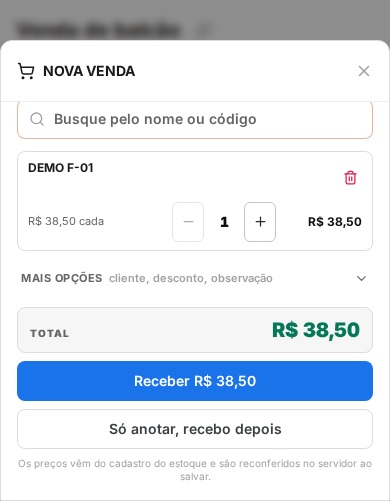
- In Search part, scan the barcode, or type the part's name or code. You can also tap a part in the grid.
- The barcode reader is ready by default: when it beeps, the part goes into the cart. Scanned again, adds one more.
- Two parts with the same code? Opens the window 'This code is in 2 parts.' Which one?; tap the right part to add it to the cart.
- The grid shows the parts that sell most on this device. On first use, it shows the Parts from inventory.
- When the screen opens, the app builds the parts catalog on its own on this device. A line at the top shows Building the catalog: N of N parts, and disappears when it finishes.
- In a store with many parts, the line may say Catalog with N of N parts. The rest continues tomorrow. Nothing to do: the setup continues on its own.
- If Could not build the parts catalog appears, tap Try again.
- Each part shows its price and whether it's Available, Few left, or Sold out. For a part that ran out, Quote requests prices from suppliers.
- In the Cart, use - and + to change the quantity. To remove the part, tap the X on the line; Undo brings it back.
- Check the unit at the top of the bag. When switching units, each operator sees their own bag for that unit. When you return, the items and customer remain saved on the device.
- Under Customer (optional), search by name or phone, or tap Register new customer. In Car (optional), type the car.
- To give a discount, tap Give discount, next to the Total. Enter a value or a percentage, such as 10%, and tap Apply.
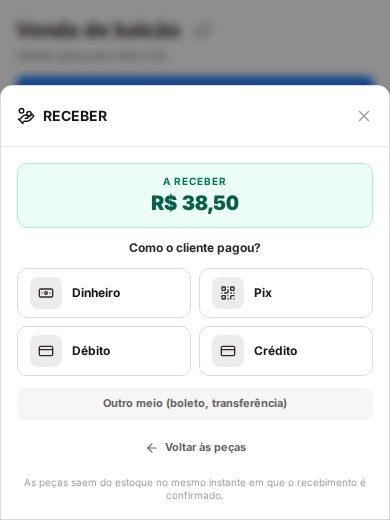
- Tap Receive to charge. Save sale leaves the sale under Receivable, without removing parts from stock.
- Under How will the customer pay?, tap Cash, Pix, Debit, Credit, Other method or Split.
- For Cash, type how much the customer handed over or tap the banknote. The app shows the change before Receive.
- For Pix, show the QR code to the customer or tap Copy code. Check your bank and tap Received the Pix.
- For Debit or Credit, choose the card terminal and the installments. Run the card and, once approved, tap Processed as debit or Processed as credit.
- Paid in more than one way? Tap Split, choose the payment method and amount of each part, and tap Add this part until the total is complete.
- Sale on account: choose the customer in the bag, tap Receive and On account, and then tap Sell on account. Without a customer, the app asks: Choose the customer in the bag to sell on account.
- On the account, parts leave the inventory immediately and no money comes in now. The sale appears under Who owes me as Sale on account, and the customer takes the part.
- To receive the sale on account, open the sale, from the record or from Already paid, in Who owes me, and receive the amount outstanding. Partial does not exist there.
- The sale on account enters revenue and the day's cash when it is received, not on the day it was made.
- To take the part to the customer, tap Deliver, in the bag, before receiving. The delivery fee is included in the total.
- Done: Sale completed! appears, with the total and change. Collecting payment deducts from stock and goes into the day's cash.
- In Sale completed!, tap New sale, Send via WhatsApp or Print. Under Printer paper, choose 80 mm or A4; the app remembers the choice on this device.
- In Send on WhatsApp, type the customer's WhatsApp number and tap Send. The number is not saved in the record.
- The receipt says This receipt is not a nota fiscal (Brazilian tax invoice). For the invoice, use Issue NF-e or Issue fiscal receipt.
- With a customer from the records, Show QR lets the customer open the sale on their phone, using their CPF.
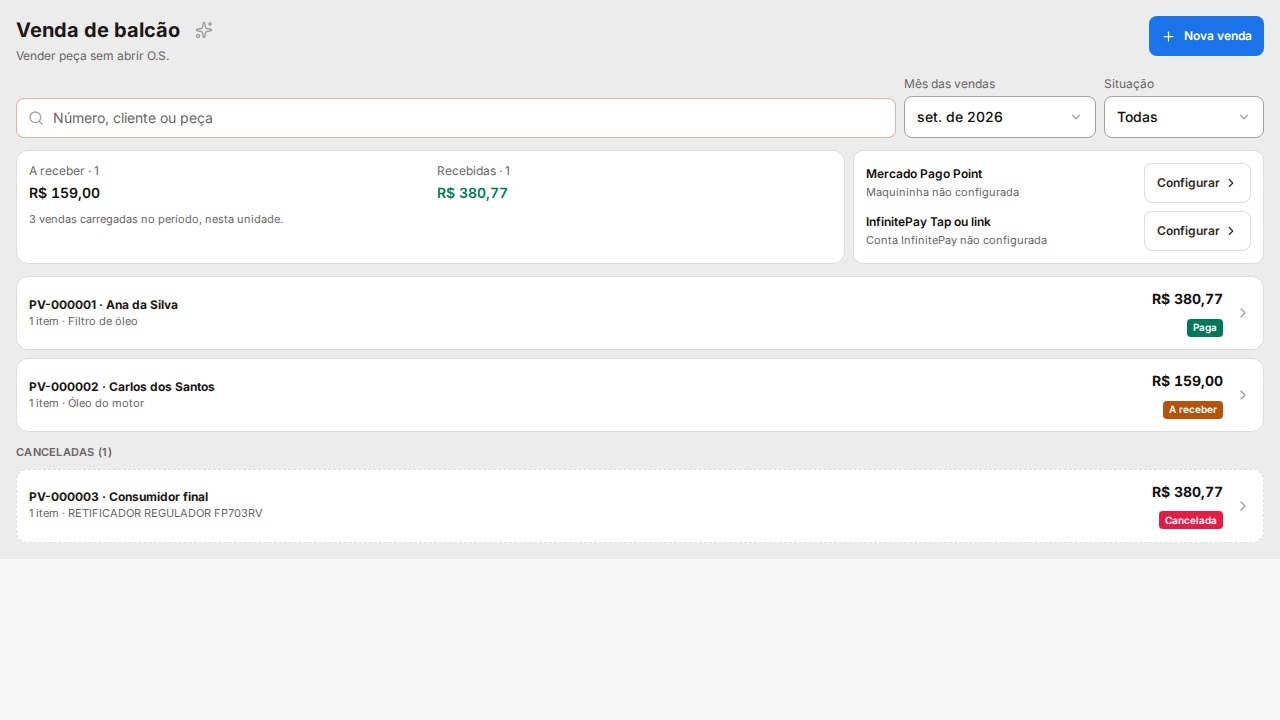
- To see today's sales, tap Today's Sales at the top of the screen. There you'll find search and the cards To receive, Received and Cancelled.
- In Today's sales, search finds the sale by customer, part or number: PV-000087, pv 87 or just 87.
- To charge on Point or via the InfinitePay link, save the sale and receive payment from its record, under Today's sales.
- In Today's sales, tap a sale to open its record: Back on the left and More actions on the right. The line under the seals says when, how and by whom.
- More actions gathers, depending on the sale, Update prices, Identify customer, Fix payment method, Return items and Cancel sale. Outside business hours, each one states the reason.
- Replacing parts keeps the agreed price of the parts already on the sale; a new part comes in at the Inventory price.
- In the open sale, Update prices shows the current total and the total with today's Stock prices before confirming.
- A sale without a customer and without an invoice has Identify customer, in the menu or in the Sale without customer line. Once identified, the customer cannot be changed.
- For a sale paid with a single method and entered by hand, Fix payment method changes the method with a reason, which is kept in the history.
- To cancel a paid sale, write the reason and choose how the money was returned: one of the seven methods or No refund. The sheet shows how much leaves today's cash register.
- Print receipt, on a paid sale, or Print order, on others, prints the entire sale. The browser's Ctrl+P also prints the sale.
- In the Send to the customer for approval card, use Copy link, My WhatsApp or Store number: the first tap prepares the link and the second sends it.
- When the customer approves or declines in the Portal, the bell notifies you with the sale number and, when declined, the reason. Opening a sale leads to the record sheet.
- On a paid sale, the Sale invoice card asks Which invoice to issue?: NF-e, on A4 paper, or NFC-e, on an 80 mm receipt. Before receipt, the invoice is released only after receipt.
- Each note shows whether it is Released for this company or what is missing. In this version, the receipt (NFC-e) is issued only in homologation: real issuance stays closed until validation in production.
- Under Sale complete!, Issue NF-e (A4 sheet) and Issue receipt (NFC-e) open the invoice card already on the chosen invoice: check it and tap Issue. The fiscal receipt requires NFC-e to be enabled for the company.
- The sale also goes into the Fiscal Panel queues, with the Balcão badge.
- On a sale on account, the invoice or receipt goes out from the sale record, on the day of the sale, without waiting for the receipt. It asks for the customer to be identified and deducts the inventory.
- The open-account sale does not enter the Fiscal Panel queues: issue it from the record card. The receipt (NFC-e) is issued only on the day of the sale; after that, issue the NF-e.
- When canceling the whole sale, if the invoice can no longer be canceled, the app issues the return NF-e on its own, right after the cancellation.
- If the return NF-e stays pending, the screen warns and the note card shows Resend. The sale remains canceled.
- Did the customer return only some parts? Open the sale and tap More actions, Return items.
- NF-e and NFC-e are only enabled with the CNPJ's own authorization and the trade CNAE. NFC-e has its own numbering and homologation in Fiscal Configuration, in the Cupom (NFC-e) group.
- Receipt series already used in another system? Enter the next free number in Starting NFC-e number and tap Save numbering. The app only moves numbering forward.
- On the NFC-e, the CPF or CNPJ is optional and becomes mandatory from BRL 10.000,00. Above BRL 200.000,00, with the payment method Other or on a sale from another day, issue the NF-e.
- On the authorized receipt, use Print receipt (80 mm) or Send to customer. The receipt is issued without the approximate tax amount (Lei 12.741): the app does not yet calculate this total for it.
- On the customer record, the Counter purchases card shows the 10 most recent purchases; tap one to open the sale.
Heads up
- Only whoever can sell at the counter builds the catalog. The other profiles see the line Searching the parts directly in the record.
- For someone who only sells, use the ready-made Cashier profile, under Team: it opens Counter Sale without opening Inventory and without showing cost.
- Saving a sale does not remove parts from stock: the stock deduction only happens when payment is received. The sale stays in To receive until someone receives it or cancels it.
- The cards count sales created in the month; Finance counts by payment date. Anyone who cannot see revenue sees only the quantity.
- Without the Sell at counter action, the screen is for viewing only, without New sale.
- The On account method appears only for owner, administrator and manager, and only on a new sale: a saved sale is received by the other methods. The Cashier does not see it.
- Sale on account has no Undo receipt: the app says To undo, use Cancel sale. Canceling returns the parts to the inventory and zeroes the debt; only owner, administrator and manager.
- A profile without Record payment on the O.S. sees only Save sale, with the line Who receives is the cashier.
- Receive turned off shows the reason: empty cart, no internet, or discount above the limit.
- Non-owners can give up to 30% discount: the Give discount window shows the sale's cap. Above that, only the owner can give more.
- Removing the discount, in the same window, sets it to zero.
- A part marked 'May have run out' is checked against stock when you receive.
- Without internet, the sale is not completed: the cart is kept and Try again sends it again.
- With a part quantity above the stock balance, Receive warns in one line and does not offer InfinitePay; manual receipt only goes through when the part arrives in stock.
- When a part exceeds the balance, Point also refuses the charge before the card is processed; collect payment when the part arrives in stock.
- Point charged and stock was short? The record warns and removes Receive and Exchange parts: reverse it in Mercado Pago or, only the owner, use Complete with the shortfall recorded.
- Completing with the shortage recorded checks first in Mercado Pago, closes the sale as paid, reduces stock down to zero and notes the shortage of each part.
- If Point charged without stock and the refund is processed from the Mercado Pago panel, the sale goes back to Receivable, without the card-charged notice.
- The workshop only needs to connect its own account and set up the terminal. The server also checks the global release of the application, without asking for a canary per client.
- Unknown status, action required, pending cancellation or Confirming settlement do not authorize repeating the charge.
- Under Confirming settlement, the provider has already confirmed: wait for the server to finish processing the order and stock; do not close or cancel blindly.
- Leaving the screen does not turn a pending charge into a failure; the Scheduler remains the safety net within up to 20 minutes.
- A refund requested or under review does not unlock local cancellation. Do not create another operation: the app keeps the same key and keeps checking.
- On the InfinitePay link, the amount paid must match the sale total; if it differs, the screen warns you and offers Receive manually. The same payment does not settle two sales.
- The InfinitePay link is only generated for a sale to be received and with stock covering the parts, always for the total of the sale.
- A sale to an end consumer does not create a registration, does not receive a Portal link and does not take part in the loyalty program.
- Identifying the customer after payment does not grant the cashback for that sale. Identifying does not swap one customer for another.
- Correcting the payment method does not apply to split payments or to the method confirmed by the card terminal (maquininha) or the link. Sale paid in a previous month; only the owner can correct it.
- With the cash register for the payment day closed, the correction is refused: today's can be reopened by the owner, but the previous day's cannot be reopened, so the payment method stays as it is.
- Canceling a paid sale calls for Remove or reverse receipt in the profile. Sale paid in a previous month, only the owner can cancel it.
- The cancelled sale stays on the day and month it was paid; the refund comes out of today's cash register, using the method chosen. No return made: nothing is taken from the cash register.
- For a sale paid by a registered card terminal, a cancellation with refund also returns the fee if the terminal had 'Return the fee on reversal' turned on.
- For a sale paid through Point, Reverse and cancel sale refunds to the card: the cancellation only happens after Mercado Pago confirms the refund.
- An authorized invoice locks the sale's cancellation: cancel the NF-e within 24 hours or the NFC-e within 30 minutes. Then, the app issues the return NF-e. With the invoice issued outside, record the return issued outside.
- With the note issued outside, issue the return NF-e with the accountant or another issuer and record it on the note card, under Record return. Once recorded, the sale can be cancelled.
- Issuing the sale's invoice asks for Sell at the counter or Issue invoice; cancelling asks for Cancel invoice. The owner can always do it.
- The invoice is issued by the company of the unit where the sale took place. Issuing on behalf of another company is only for those who configure tax settings, or the owner, and requires a reason.
- If SEFAZ did not respond or issuance was interrupted, the card offers Check at SEFAZ: it checks the invoice already sent, without creating another one.
- NF-e and NFC-e have no automatic queue: with SEFAZ down, issue again in a few minutes. The rejection shows the SEFAZ code and reason.
- NF-e issued by the accountant or another issuer: use an externally issued NF-e, with number and date. The app stops issuing NF-e for this sale.
- Do not issue, with a reason, is up to whoever configures the fiscal settings or to the owner: the sale goes to Not issued, in the Fiscal Panel. Returning to the tax queue undoes it.
- Outside Brazil the invoice card does not appear. Without the tax module in your plan, it says NF-e available on another plan. The printed order says NOT A FISCAL DOCUMENT: the invoice is issued separately.
- Trocar as peças or Atualizar preços on a sent or approved sale cancels the customer's existing approval.
- Sales order link: in the Brazilian registration, it requires CPF and expires in 72 hours. In other countries, the link does not expire and the customer enters the portal with a verified email.
- Without Customer Portal in the plan, the approval card becomes the line Customer approval available in another plan.
- Opening the card creates no link: the approval link and the receipt link are only generated on tap.
- The bag stays on this device. If the screen offers a saved bag, choose whether you want to continue. After 24 hours, the basket is emptied.
- In Receive, Change method returns to choosing the payment method.
- On the computer, F2 receives payment, F4 goes to the customer and F9 saves the sale. Esc clears the search.
- A sale can include up to 100 parts.
- Barcode of a part from another unit does not go into the cart: only this unit's stock can be sold.
If something doesn't go as expected
- Saving a sale or swapping parts does not deduct stock. A sale with a customer cannot change customer: to sell to another person, make a new sale.
- If the payment fails after the sale is created, it appears in the list as To receive - open it and receive payment; don't create another one.
- If the price changed on another device, nothing is charged: the ticket opens with the new total, for you to check and collect.
- To undo a paid sale on Point, open More actions, tap Refund and cancel sale, and enter the reason.
- If Estorno em conferência appears, use Atualizar estorno. Order, stock and loyalty are only reversed after Mercado Pago confirms the full refund.
- Cancellation refused because the sale changed on another device? Check the new status on the record and, if still necessary, cancel again.
- Data is missing for the invoice on a sale without a customer: tap Identify customer on the same sheet and issue it afterwards.
- Checking with SEFAZ with no response sends nothing: check again in a few minutes, without issuing another invoice.
- Authorized, preparing files: the invoice exists and the app prepares the XML and DANFE on its own. Record the return after they are ready.
Limits
- The app issues the return NF-e only when the sale's invoice was made by it. A note issued outside the app is issued outside and recorded here.
- There is no credit sale: Save sale leaves the sale under Receivable until payment is received.
- Dona doesn't sell, doesn't receive payment, and doesn't cancel: she finds the sale and states the number, status and customer, without the amount.