Register contacts and vehicles, check the history and share access to the portal.
Where to find it in the app
Customers area.
Step by step
- On mobile, registration starts with the fields, without a title bar above them. Tap the field to type; the search opens its own sheet.
- Search for the customer before registering, to avoid duplicate records. The cards show up to two license plates: cars stacked, motorcycles side by side, and a car with a motorcycle stacked.
- A plate is not confused with a phone: the phone only enters the search with 4 digits or more and without letters. With nothing typed, the newest customers appear first.
- Check +N plates to see how many did not fit on the card. Open the record to see all of them; the contact button always stays in the bottom-right corner of the card.
- In Brazilian registrations, CPF and CNPJ are kept separate; CNPJ is optional. For a record from another country, identifiers follow the profile and do not replace the portal's verified email.
- Tap New Customer and enter the name and phone number with the country code (DDI). Customer and new plate country come from the workshop, without selectors. Existing records and plates keep the saved country.
- Look up company data searches the NIPC of Portugal, the Canadian federal BN, the Spanish business NIF and the Australian ABN. Coverage is partial.
- In Spain, the source is OpenMercantil/BOE-BORME. Check the data's reference date and the outdated-data notice before using the data.
- Absence from the database does not invalidate the document. Customer personal data is preserved.
- A new, empty phone field suggests the DDI based on the IP. Check before typing. Saved number and manually chosen country code (DDI) are preserved.
- Plate lookup is only available to workshops in Brazil. In another country, tap the magnifying glass and confirm Request integration to open a ticket, without using up queries.
- Choose the vehicle type and enter plate or identification, depending on the equipment.
- Check make, model and year. The camera next to the plate field can help fill it in.
- In Notes, after the address, write what the team needs to know about the customer, up to 1.000 characters. The text appears on the record.
- In the vehicle form, the Notes field holds up to 500 characters. The text appears on the vehicle card, in the customer record.
- Hello. In the next O.S., searching by plate brings up the customer and the vehicle. In the search sheet, the license plate appears next to the name and phone, including for motorcycles.
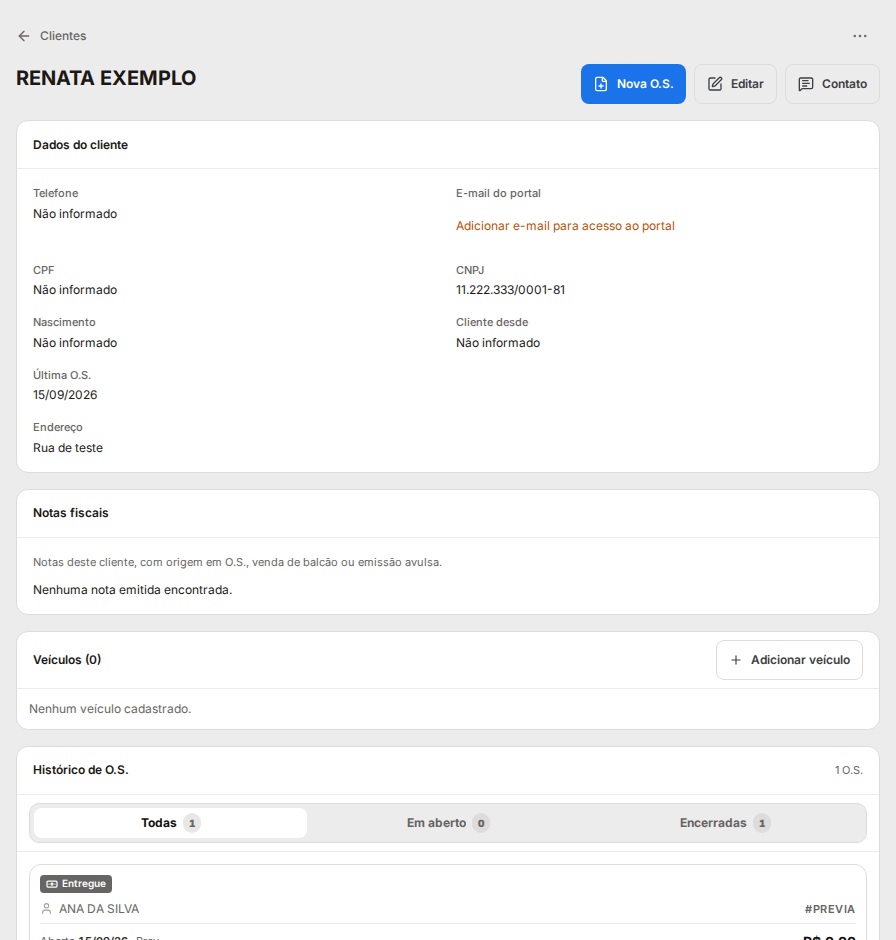
- On the client record, Tax invoices stays open and loads the list automatically. Each invoice identifies its O.S., sale, or standalone invoice and offers Download PDF and Download XML.
- Under Counter sales, anyone with access to Counter sale can see the 10 most recent purchases from their units, including the number, date, total, and status. Tap one to open it.
- The customer’s and insurer’s histories show only work orders from the units you can access. The insurer’s record is shared across the network.
- The customer's country adjusts the postal code field to CEP, CAP, ZIP Code, Postal Code, Postcode or Código postal. In Brazil, the CEP lookup remains the same.
- Italy, Spain, Portugal, United States, Canada and Australia search city and region when available. Check the details and complete street and number.
- On the record, use Edit to correct the customer and Contact to chat or share the portal. Vehicles have edit/delete at the top; Add vehicle registers another one.
- On the vehicle card, New O.S. opens the order already with this vehicle. On mobile, Loyalty appears right after the customer's details.
- A car the customer left at the Comércio de Autos and that has already been delivered to another buyer stays on the record with Sold on and the date, without New O.S., paint, edit or delete.
- When editing a customer who already has a vehicle, each vehicle appears as a card: tap it to edit. To register another, tap Add vehicle.
- Editing a vehicle keeps mileage (km), paint, and the next oil change. The plate is only checked on new or edited vehicles, and the warning says which plate to correct.
- To delete the customer, tap the three-dot button next to Customers, at the top of the record, and choose Delete customer.
- The vehicle is removed using the trash icon on the vehicle card. In both cases the app asks you to type EXCLUIR before confirming.
- If there is an open O.S., an invoice being issued or a cashback balance, deletion is refused. If the workshop issues invoices through the app, a delivered O.S. without an invoice asks for confirmation.
- Use Compartilhar portal, at the top of Clientes, to send the portal link: it is one link, the same for all customers. Those who still do not have access sign up through the same link.
- The owner approves or rejects self-registration from the card, under Approve or reject. The review shows the CPF, CNPJ, or the customer's country document.
- The search sits in a compact card with side margins and follows the scroll.
- Search for the full license plate. When New work order appears, tap it to open the form with the customer and vehicle already selected. To view the record, tap the customer’s name.
- To edit a vehicle or its paint record, you need access to the customer's unit when you save.
Heads up
- Customer and vehicle notes are kept only on the Customers record. They don't appear on the O.S.
- A new vehicle starts with the last type saved by the workshop, shared with all users and devices. Moto suggests Moto; lancha or boat suggests Lancha / barco.
- Plate reading replaces the suggested type when it identifies a car, motorcycle, truck or van. Selecting a type or canceling the form does not change the workshop's default.
- A motorcycle registered with this type shows its plate on two lines on the screens that already recognize the vehicle; changing brand or model does not define the type.
- A wrong phone number gives no error: the notice simply doesn't arrive, and you only find out when the customer calls to ask.
- Share Customer Portal remains visible when the plan does not include the feature. The button turns gray and is disabled; this does not change the plan list.
- Don't have the jet ski's serial number on hand? Leave the suggested identifier (JETSKI-1) and change it later - the field cannot stay empty, because that is how the service order (O.S.) finds the equipment and how warranty returns are recognized.
- The paid plate lookup does not appear in the types without a plate: it only exists for licensed vehicles.
- Spaces, dots, letters and numbers out of position or a count other than seven characters are rejected. Correct the plate instead of saving a similar identifier.
- Leaving without saving always asks: the X, a tap outside the panel, Esc and the phone's back button open Back, Leave without saving and, when the screen can save directly, Save and leave. What you typed is kept on this device for up to 7 days and comes back when reopening, in the banner that asks if you want to resume. Photos, files and passwords are not kept.
- Clearing the CPF and saving leaves the record without a CPF. New registration and changing to Brazil still require CPF or CNPJ.
- The duplicate phone warning recognizes the same number written in a different way. It's just a warning: tapping Register again, or Save changes when editing, saves the record.
- A CPF that already belongs to another customer opens the warning Document already registered: Edit record loads the existing customer, Open O.S. opens a work order for that customer, and Fix CPF returns to the field.
- A single letter filters the customers already loaded on the screen. To search the entire register, type at least two characters.
- The car sold by Auto Trade is removed from the plate cards, from the plate search and from the vehicle selection in the O.S.: searching for the plate leads to the current owner. The old owner's previous work orders continue to open normally.
- Below the email, a line reminds you that it is the portal login: saving does not send any invitation. For the customer to log in, send the link through the Contact section of the record. Email and phone do not offer the browser's autofill.
- Plate lookup in the Customer Portal uses the plan's monthly lookup allowance, not the Vehicle Lookup credits. Only the owner can change this option.
- Total spent and Most used services count only completed or delivered service orders. Courtesy and warranty are entered as zero-value service.
- With more pages, + indicates a partial count. Spending by currency and services includes the loaded work orders. Use Load more work orders to view the rest.
- On the client record, users without access to Fiscal see only the O.S. notes. Sales notes and standalone notes appear for users who have Fiscal.
- When the loyalty program is turned off or the terms have not been accepted, the balance remains visible but frozen. To delete the customer, set the balance in Loyalty to zero.
- An insurer with a linked O.S. cannot be deleted: the app tells you how many O.S. it has. Insurers and plate lookups load when you open the tab.
- The registration approval banner appears only for the owner. The plate lookup timeline counts only the billed lookups.
If something doesn't go as expected
- Accepted plates: ABC1234 or ABC-1234; ABC1D23 or ABC-1D23.
- Plate data already looked up may come from cache, without using another query; Vehicle Lookup lets you request updated data.
- Deleting the customer does NOT delete their O.S.: they remain in the workshop's history, with the name already recorded.
- Deleting also erases their vehicles and portal access: the password the customer created stops working at the same time.
- If someone else changed the same vehicle detail, reopen the record and check the change before saving. Changes to other vehicles are preserved.
- Only the workshop owner can delete customers. For other profiles the option does not even appear in the menu.
Limits
- Dona does not register anyone: the client record opens pre-filled for you to save.